

There are far too many games that never made their way out of Japan. What if we could play them while improving our Japanese skills at the same time? This is where tools like Kamui come in.
Kamui calls itself a full toolkit for extracting text from video games, looking up words, translating, creating flashcards, and more. It claims to be the easiest way to learn Japanese from games, so I thought I’d put it to the test.
Many of the Japanese games that I’m using to test Kamui came from ZenMarket, who have kindly sponsored this article. If you’re looking to order Japanese games, give them a try. They’re an import service that focuses on helping to order items from Japan, consolidating packages to keep the delivery costs down, and sending items worldwide. We’ve given an overview of our experience with their service and how to use it in a previous article.
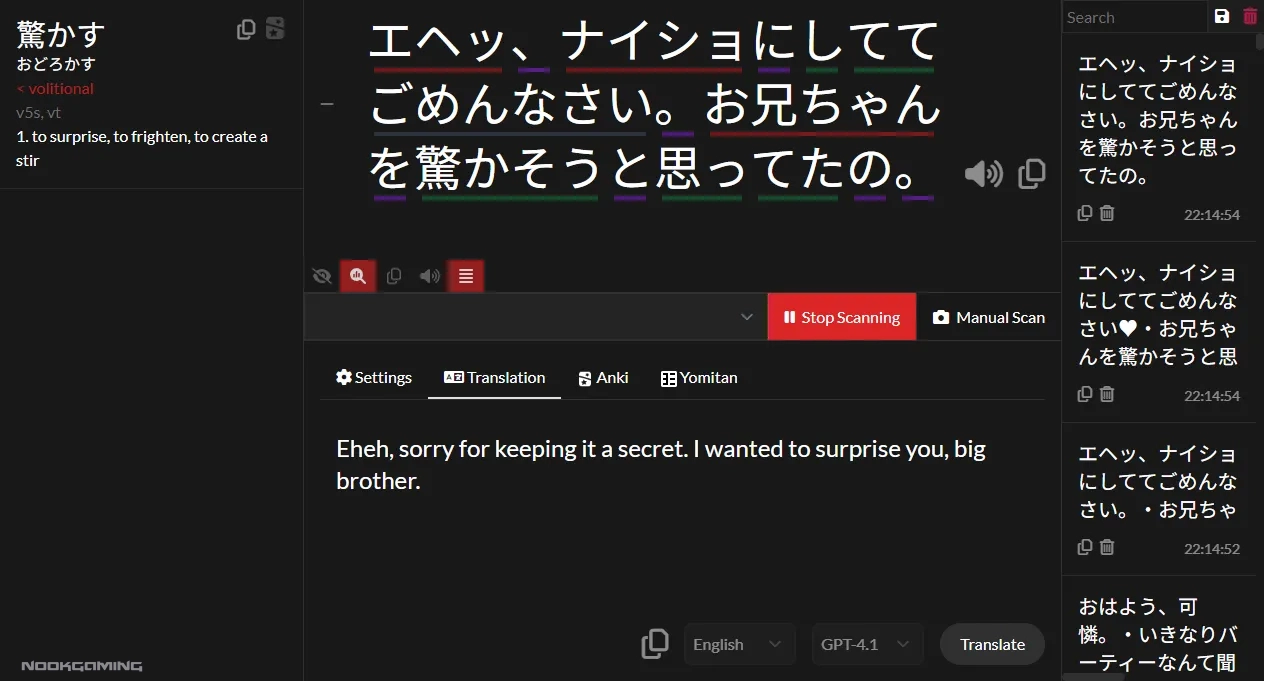
What Can Kamui Do?
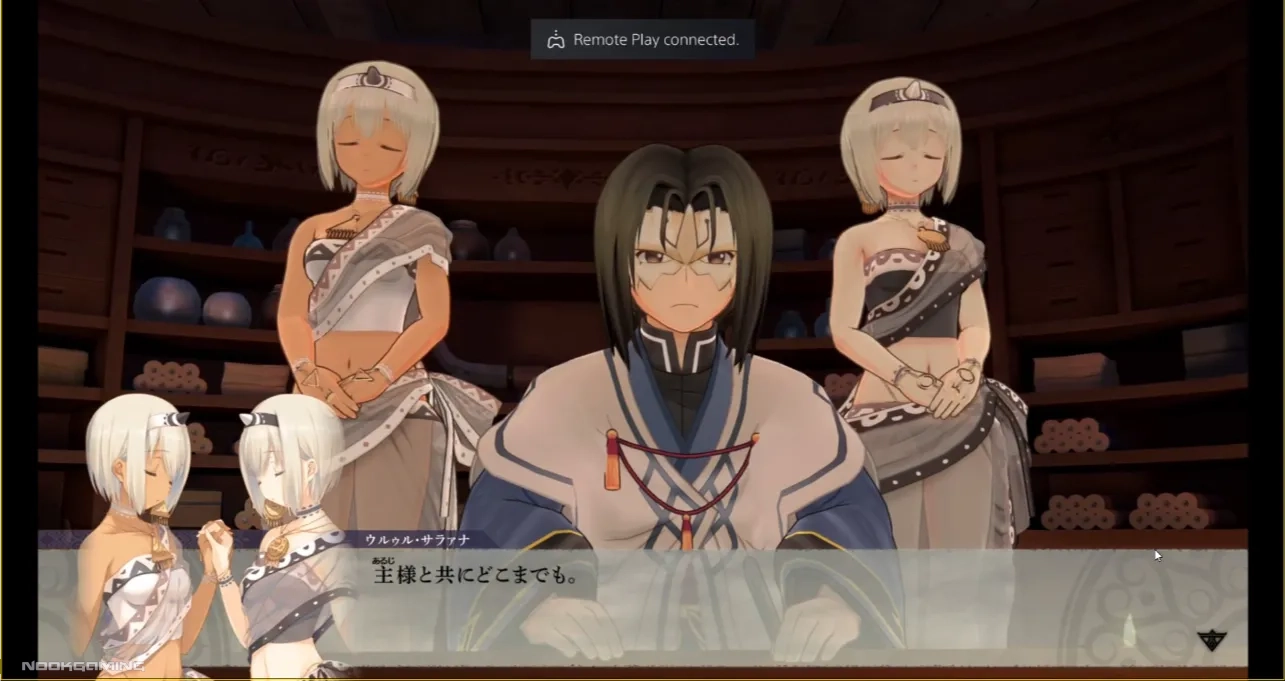
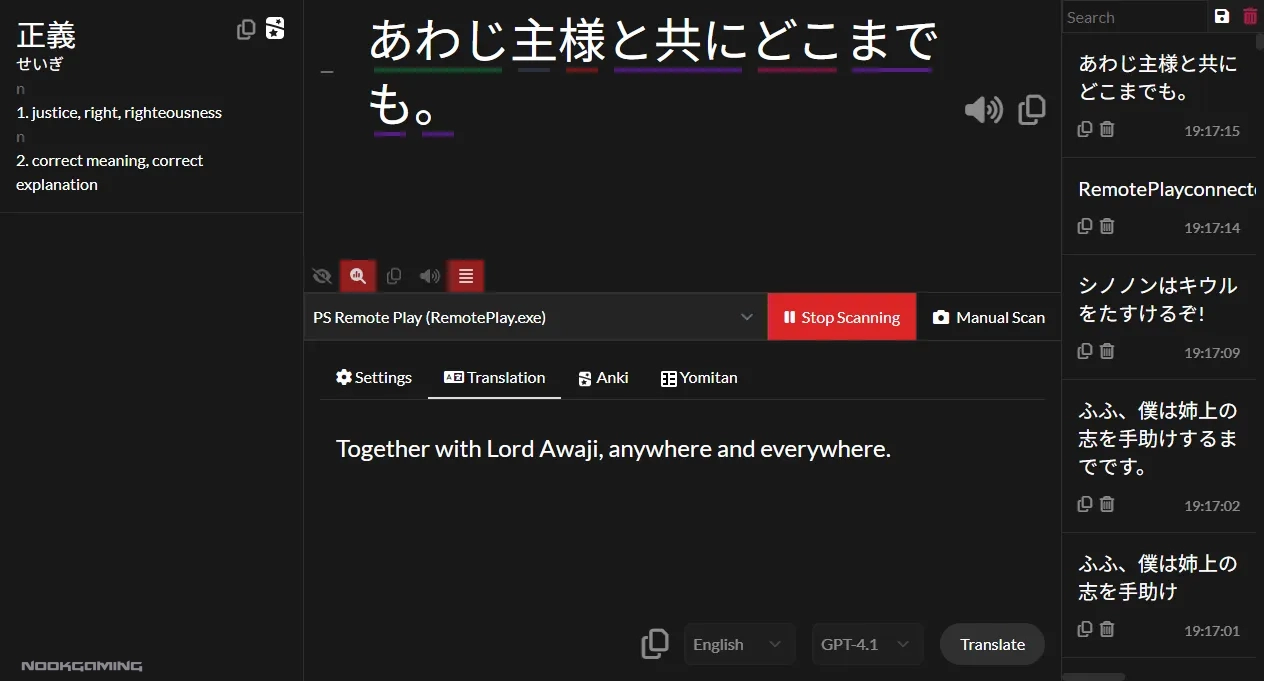
Kamui uses Google Cloud Vision’s optical character recognition (OCR) to scan the screen and extract the text. This then brings the text up in Kamui, showing each part of the sentence broken down into color-coded sections, and clickable so you can see a dictionary definition. It also offers an English translation as an option.
OCR solutions are, by their nature, potentially less reliable at extracting text accurately than text-hooking solutions, but they can be far less complex to set up. As well as that, they work on console games and visual novels, plus PC games where text-hooking isn’t possible. For console games in particular, if you’re using a method like using a capture card or remote play to view it on the PC, OCR is the best solution.
Other software has similar functions, but Kamui offers a more user-friendly experience. Another popular piece of software for example, may offer more functions, but requires a lot of setup with some settings either not documented or which are only documented in Chinese. For Kamui, I had it up and running within minutes, and didn’t have to arrange for anything along the lines of API keys.
It sounds great, but how well does it really work?

OCR Scanning
I find myself impressed with Kamui’s OCR scanning accuracy, aside from the occasional blips. I’ve found that it manages to accurately scan Japanese in most instances, whether it’s a regular font, a more ornate font, or an older style pixellated font. This side of the scanning is absolutely great and a huge help if you’re playing older titles.
It does, on occasion, throw up issues. For example, in top-to-bottom writing I found it missed most of the characters, and it occasionally had misreads such as “……..” read as “00000000”. And despite me carefully setting a specific region of the screen to scan, it occasionally picks up text outside the set region like boxes that say Save, Load, etc. There were also just the rare times when it missed part of the sentence.
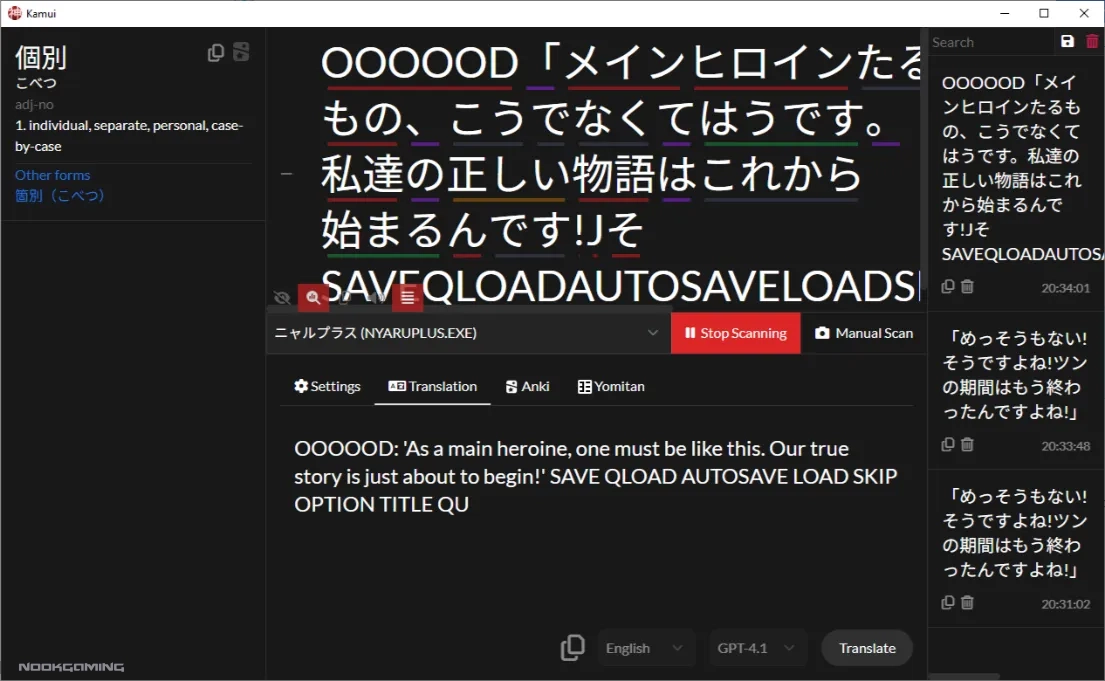
On the topic of the region scanned, I do find the output is easier to read when you set a specific region, but this isn’t absolutely required, depending on the game. But it can work better if you’ve got text in a set place and set it to that. To give an example, I was playing Utawaremono Zan 2 in Japanese, and it’s fine for the dialogue, but it gets confusing when tips on how to use various features, menu options, and the like pop up all over if you don’t limit where it scans.
I should also note that how to scan isn’t perfect. Kamui comes in two versions. One is a website interface, while the other is a downloadable software interface. The latter is experimental and includes auto-scanning.
Manual scanning means clicking the button, then waiting a second or two for the text to pop up. Auto-scanning does this automatically when it notices the text has changed. While in fairness, it is still listed as experimental, I’ve found it misses the text change about 15% of the time, and doesn’t rescan. If you’re using it to read every part, then this will be frustrating as you’ll have to wait and then click a button. If you’re just using it every so often to check a kanji, then it won’t be much of a problem.

Translation
Kamui shows an AI translation in one of the tabs if you have it selected using GPT 4.1. While it’s a practical inclusion for those who want to play Japanese games in English rather than learning through playing games, it’s not ideal.
It runs into the standard AI translation issues, such as:
- Incorrect pronouns.
- Lack of context/pronoun issues leading to things like talking about something ‘we’ did, being stated as something ‘you’ did.
- Getting character names wrong often and applying them inconsistently
- Issues like calling ‘Judith’s village’ (from Atelier Judie) as ‘Yutit village’, both getting her name wrong and assigning it to the name of the village
- Awkward phrasing, along the lines of ‘quitting talking’ when ‘stopping talking’ would be more appropriate.
- Occasionally outright incorrect translations.
- “Translation Error” messages instead of a translation appearing.
- It taking about 3 seconds from scanning to showing the line in English, leading to a slow reading experience.
- Sometimes, translating and then retranslating the same line more than once.
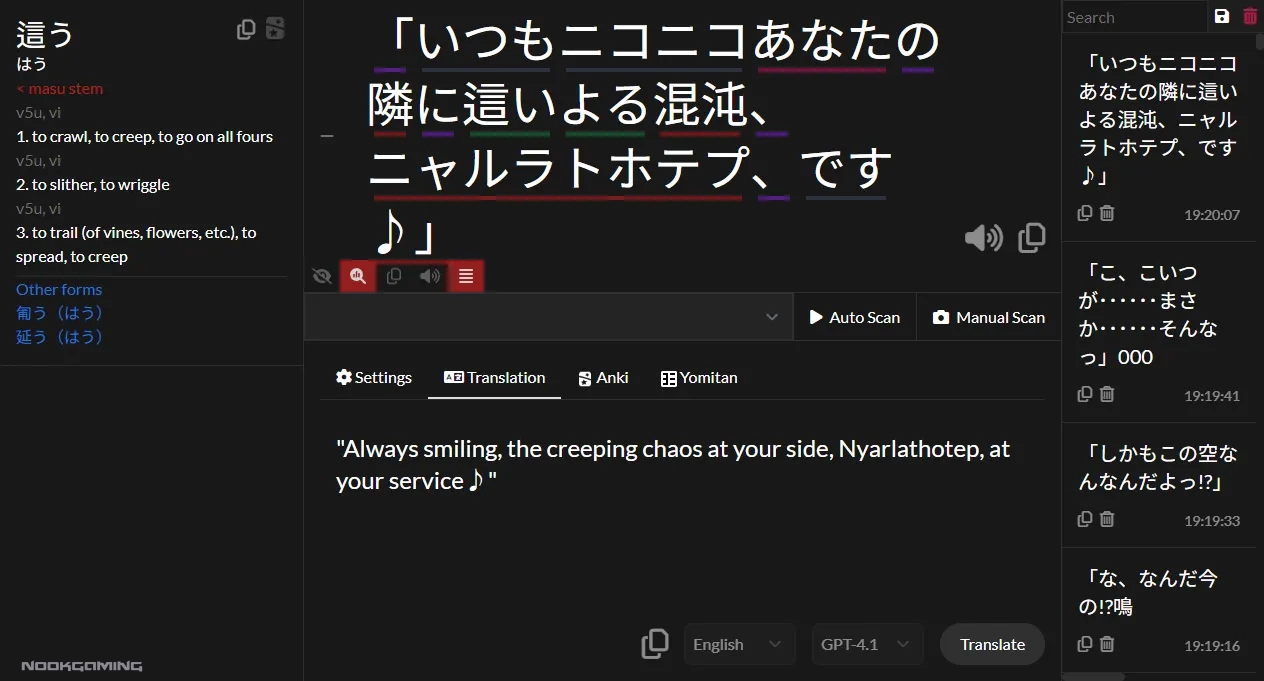
Unlike some other methods, there’s also no place to add further instructions to guide the translation process or settings around retaining the context of previous sentences. While AI translation is never anywhere near perfect, something like this could have helped to reduce the errors.
Still, it is worth acknowledging that automated translation has come a long way. My favorite example of this is in 2012, “……そろそろ・・・・・ガマンの限界だな (sousou……gaman no genkai da na)” was translated as “…It was about time limits of Gaman”. Using modern AI translation, it more correctly translates as “…My patience is just about at its limit”.
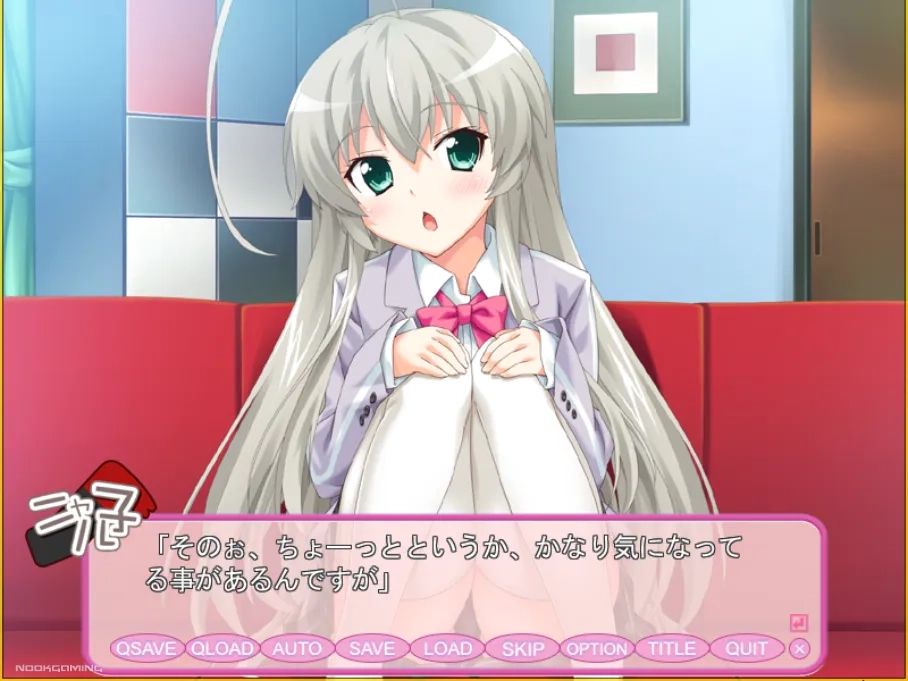
I find it difficult to recommend AI translation and can’t attest to high quality. But yes, if you want to play titles that are almost certainly never going to get translated, along the lines of Sister Princess or Haiyore! Nyaruko-san Meijou Shigatai Game no You na Mono (both pictured above), you’ll likely get the gist even if it won’t be the best experience. And very practically, not everyone has the time or ability to learn to the point where their own Japanese level will rise above that. For those of you trying, however…
Learning
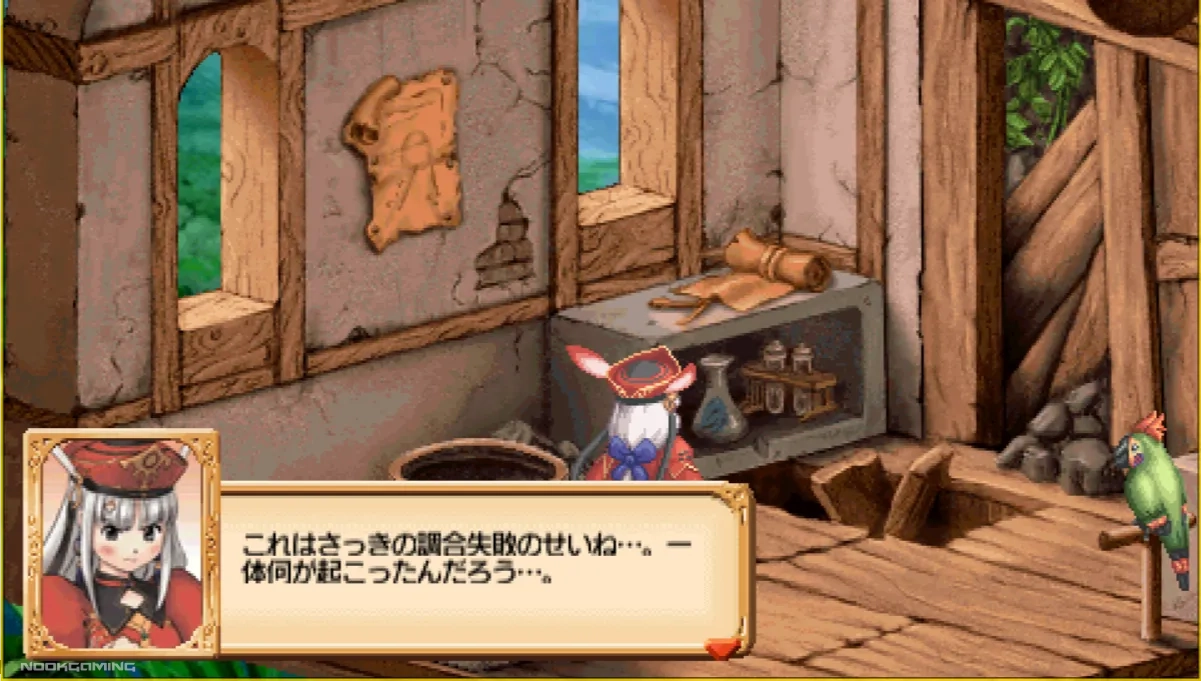
As mentioned, scanning brings the text up in Kamui, showing each part of the sentence broken down into color-coded sections. I find this very useful in learning how to build sentences and making it easier to focus on the parts that I don’t recognize.
Each part is also clickable, giving a dictionary definition. It’s far easier to look it up this way than to try to scan it with my phone camera or draw it out. When it’s in a less standard font, this is even more helpful.
Oddly, I couldn’t get either of these functions to work in Google Chrome, even after turning off all ad-blocking and similar extensions. They only worked for me in Microsoft Edge or the downloadable Kamui client.
There’s also a seemingly very helpful function to add any dictionary entries to Anki with a single click, after setup. Unfortunately, despite following the steps and the software telling me that Anki is connected, I’ve never been able to successfully add a flashcard to Anki via Kamui. This is a pity as it would be an incredibly convenient feature for learning. More usefully, it lets you save the backlog of extracted text. You can then use this for your notes.
Learning Japanese with games is a great idea. Motivation is a major factor in how successful people are at language learning, and the idea of being able to access previously inaccessible games and having fun while learning can certainly be motivating. While the functionality may need some work, this could potentially be where Kamui shines the most.
A Little More
Beyond the features mentioned above, a few other things are worth noting.
While Kamui is used for translation, it doesn’t have an overlay or a way to place a small dialogue box under the game window at this time. It’s laid out more as a learning tool, with the dictionary and settings all to hand. This makes it less suitable for comfortably reading a translation than some other tools.
While using Kamui, I had issues using the Windows start menu. I did seem to have some issues even after closing Kamui on occasion, eventually having to restart the computer.
Final Thoughts
As it stands, Kamui is an interesting tool that could be incredibly useful for learning Japanese with games, with some further development. Even as it stands, it certainly can be used well, if you don’t mind some frustration.
Perhaps some of the issues I came across could have been overcome with some technical support, but Kamui is calling itself the easiest way to learn Japanese from games. Having to overcome technical issues takes away from that. Your experience with these issues may vary depending on your computer setup and the game used, and perhaps you’ll be adding flashcards and successfully scanning without issue.
What I do really like is that when it works, it is incredibly user-friendly in terms of layout and function. It’s by far the quickest to jump into a game with and start. And yes, while I don’t recommend it, if you don’t mind a somewhat slow and shaky AI Translation, it’s pretty easy to play those Japanese games using that.
Kamui is a rather promising tool in some ways. If it sounds interesting, you get 500 free scans when you sign up (and it’s only $5 USD/month beyond that), so you can easily give it a try and see how it works for you.
Thanks again go to ZenMarket for sponsoring this article. If you’d like to import any goods from Japan, please consider checking out their service and don’t forget to use code NOOKGAMING when signing up for 800 Yen worth of ZenPoints toward delivery.
Planning to pick up some Japanese games for PC? Some Japanese games and visual novels will work without any issues. However, some may need you to change your locale. Check out our article on How to Play Japanese PC Games and Visual Novels with Locale Emulator for more information on that. If you are looking for more posts about anime games, you may enjoy our post on Some of the Best Overlooked Anime Games.

A gamer since the days of Amstrad and DOS and someone who has dabbled in a variety of professions. He enjoys a wide variety of genres, but has been focusing on visual novels and virtual reality in recent years. Head Editor of NookGaming. Follow him and the website on @NookSite.


